
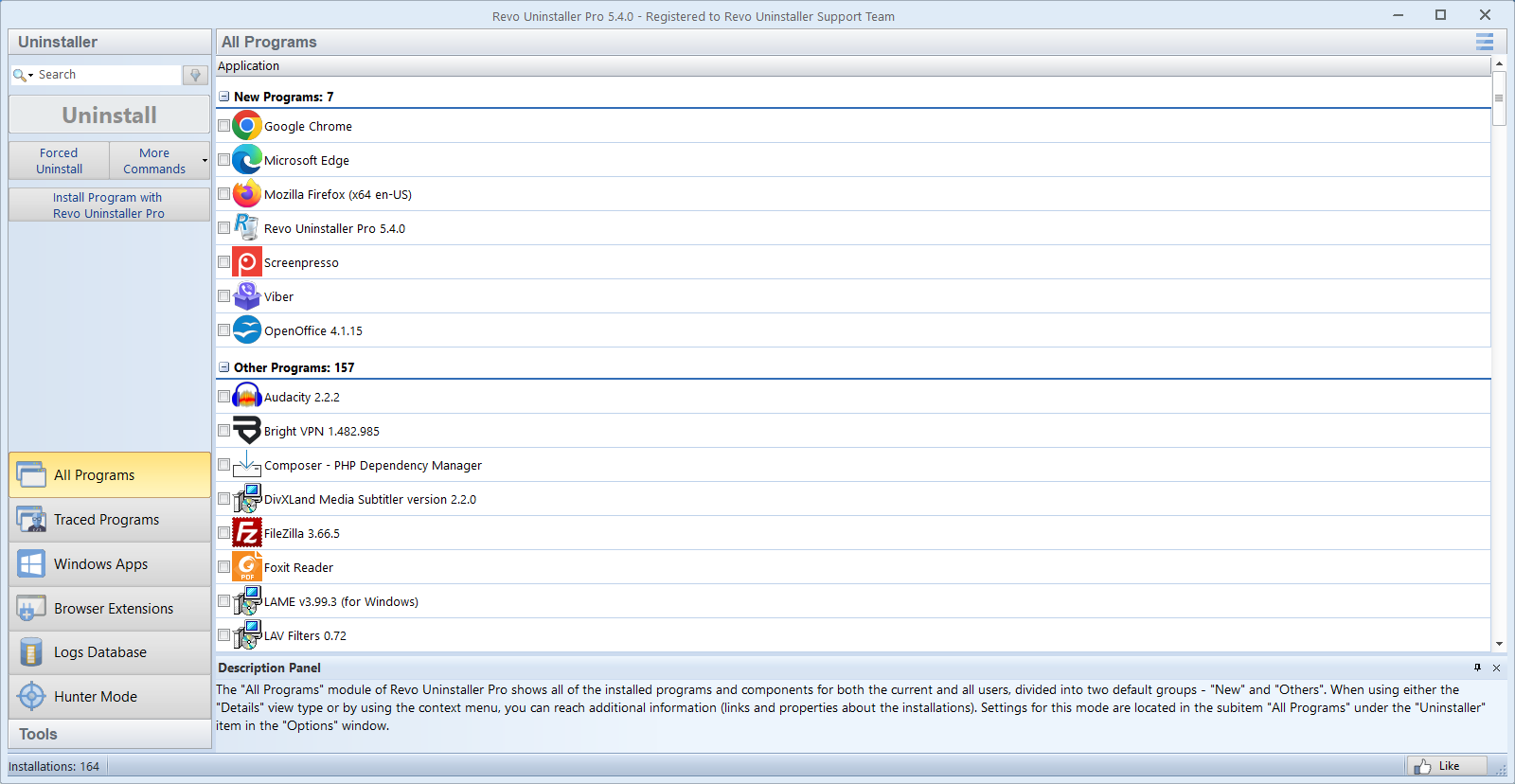
Hunter Mode is the fastest way to answer “which executable owns this window or tray icon?” when the app does not appear cleanly in All programs. Think of it as a targeting scope: you confirm the process, inspect its install folder, then decide whether a normal uninstall, forced uninstall, or simple folder delete is appropriate.
Basic workflow
- Enable Hunter Mode from the toolbar or sidebar (depending on your Revo layout).
- Drag the crosshair onto the window, desktop shortcut, or tray icon you distrust.
- Read the process name and path. If it points at a folder under
Program Filesor a vendor directory you recognize, open that location before uninstalling. - Cross-check the same executable in Revo’s program list when possible so you get the full uninstall scan instead of deleting a single file.
Portable apps and “invisible” installs
Portable-style folders often lack Add/Remove entries. Hunter Mode helps you find the real folder to remove after you quit the app. Always copy important data out first; Revo can remove files aggressively once you confirm the target.
Use Open location to reveal Explorer paths. If you see multiple executables with similar names (app.exe vs app-helper.exe), search both in All programs before you delete anything tied to the helper.
Security software and elevation
If antivirus or endpoint protection blocks Hunter actions, pause only long enough to finish the identification step, then re-enable protection immediately. Avoid leaving real-time scanning off overnight just to speed cleanup.
Some tray tools run elevated. If Revo is not elevated, you might see incomplete paths or “access denied.” Run Revo as administrator for those targets, then return to a standard user workflow for everyday uninstalls.
Multi-monitor and hybrid graphics
On laptops with hybrid graphics, confirm you are targeting the desktop app and not a generic shell host that draws multiple unrelated shortcuts. When in doubt, write down the executable path, release Hunter, and search for that path in All programs before confirming removal.
Across multiple monitors, drag carefully onto the correct window; a few pixels on the wrong title bar can select a different process. If the wrong app highlights, reset Hunter and try again.
On displays scaled above 100%, the crosshair hit target can feel smaller than it looks. Temporarily setting Settings → System → Display → Scale to 100% for the identification step—then reverting—can make targeting less fiddly on dense layouts.
When Hunter is the wrong tool
If the program appears normally in All programs, prefer a standard uninstall so you get the vendor’s scripts and Revo’s full leftover scan. Hunter shines for tray-only tools, unpackaged games, or adware that hides its entry.
Forced Uninstall is a last resort for broken installers, not a default for anything Hunter highlights. Always capture the install path and confirm you are not pointing at a shared runtime folder used by other software.