
Guides
Forced Uninstall, Quick Uninstall, leftovers, history, and practical fixes.
These notes assume Windows 10 or 11 and a current build of the program. Menus can move slightly between versions, but the overall flow stays the same.
Before you change anything
- Snapshot the system. Create a restore point from Windows before you delete large batches of leftovers or use registry tools.
- Close the target app. Exit the program, tray icons included. End stuck tasks in Task Manager if an uninstaller says files are busy.
- Save your work. Flush documents and game saves that might live inside the program directory you are about to remove.
- Note dependencies. If the app ships a custom driver or VPN adapter, check the vendor docs before you rip out related services.
- Check connectivity. After removing VPNs or security suites, confirm Wi-Fi or Ethernet still works before you delete more network-related leftovers.
- Free a little disk space first. Scans and backups need temporary room. Aim for several gigabytes free on the system drive before huge cleanup runs.
Registry backups before deep edits
Many Pro installs ship a backup center beside Registry Cleaner. Export snapshots before aggressive scans, store them off the system drive, and keep at least one restore point from Windows as well.
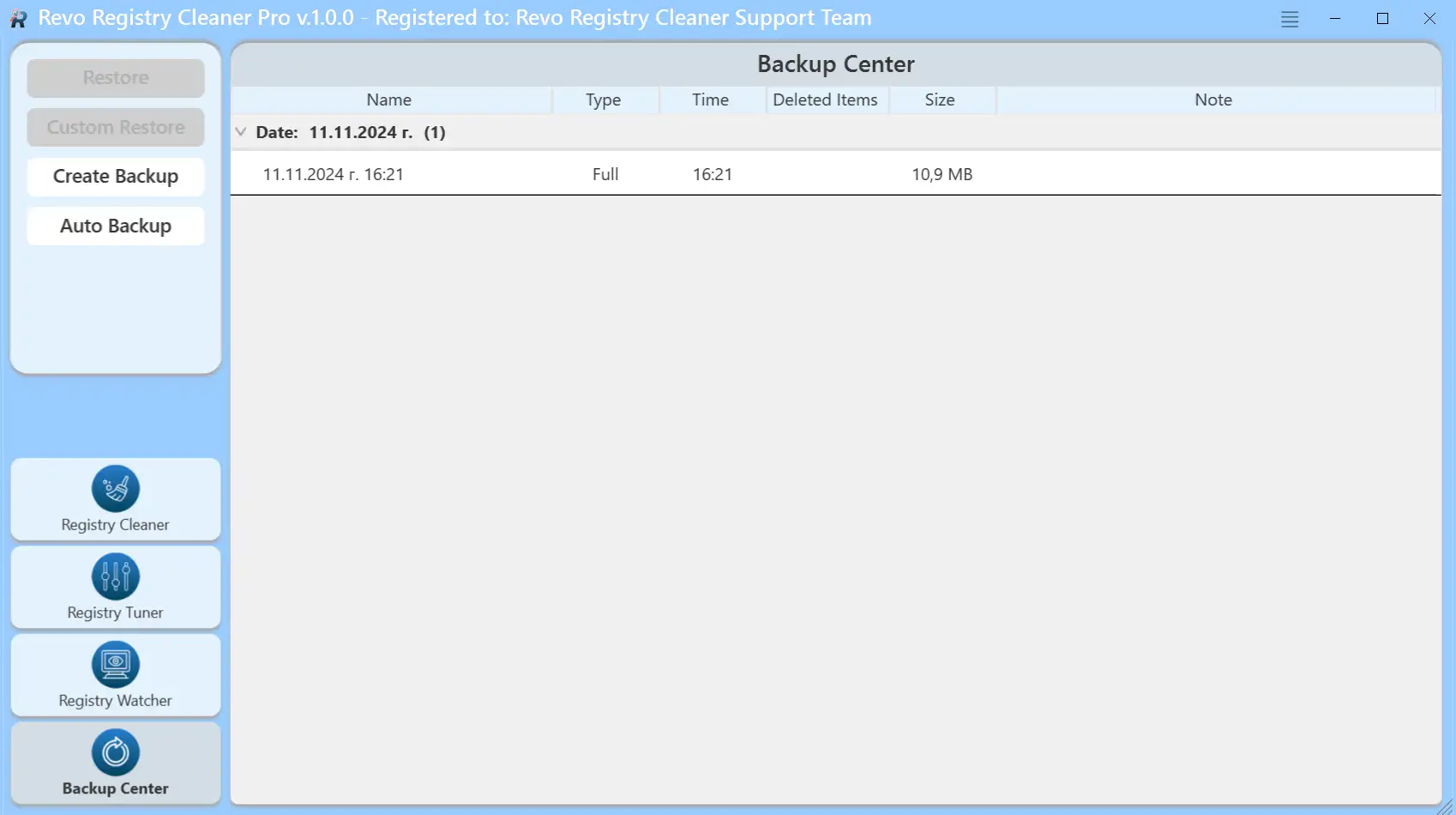
Automation, tuning, and real-time watching are pictured in order on Features → Registry Cleaner panels.
Step-by-step guides
Forced Uninstall vs Hunter Mode
- Forced Uninstall: for entries that exist but the vendor uninstaller fails. You point to the program folder and run a leftover scan.
- Hunter Mode: for things that barely appear in the list: drag the target onto the window or tray icon.
When the normal uninstall is enough
Most desktop software still ships with an uninstall entry. Try this sequence before you reach for advanced modes:
- Select the program in All Programs and run Uninstall. Let the vendor wizard finish, including any reboot it requests.
- If the wizard errors out, run it again as administrator, or repair the install from the same installer package if the vendor offers that option.
- Only after that, use Forced Uninstall with the correct folder path, or Hunter Mode when there is no list entry at all.
- Open the leftover list, uncheck shared items, then delete what clearly belongs to the removed product.
Quick Uninstall: when it helps
Quick Uninstall walks several selected programs through uninstall and scan steps in one session. It shines when you are removing a family of tools from the same vendor or clearing a machine you just inherited.
- Select only programs you understand. Mixed batches make it easier to mis-click on the leftover screen.
- Prefer moderate or safe scan levels until you trust the results on that PC.
- Take a break between huge batches so Windows can finish file locks and antivirus can settle.
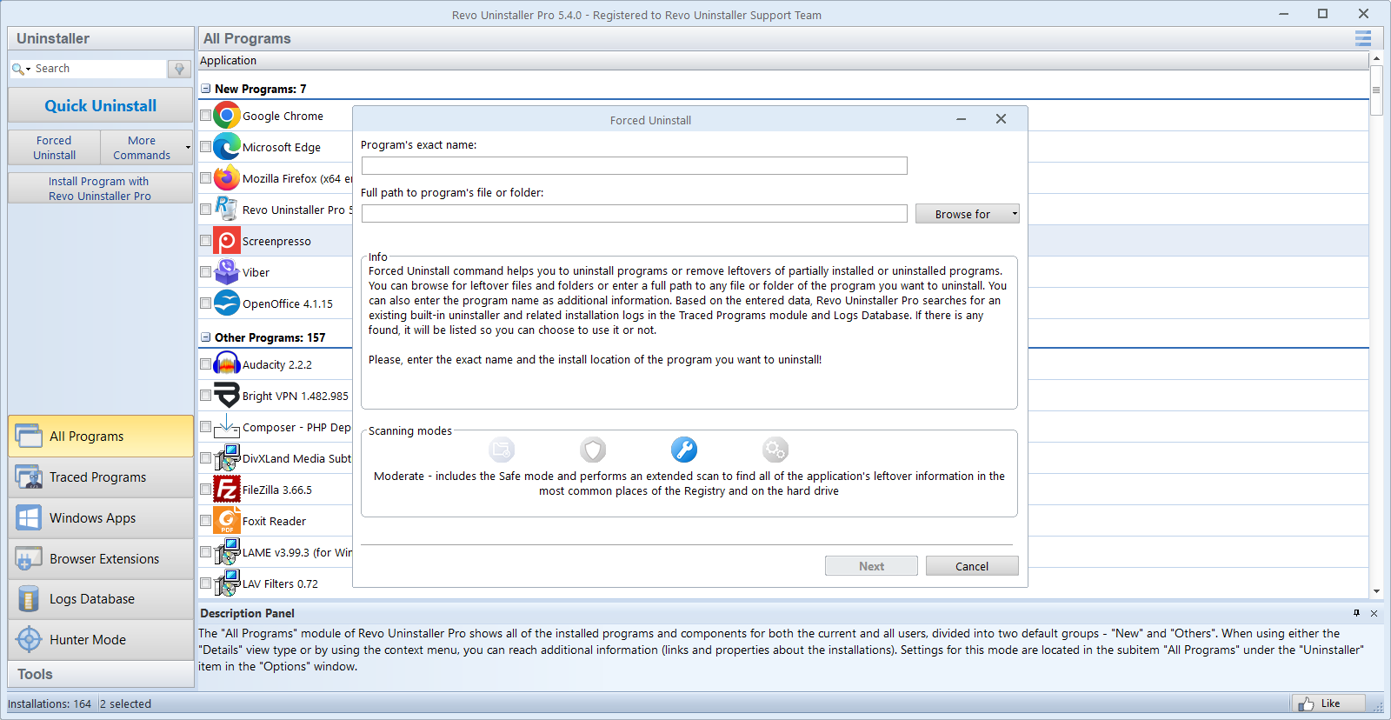
Forced Uninstall: enter the program name and path, then continue with the scan.
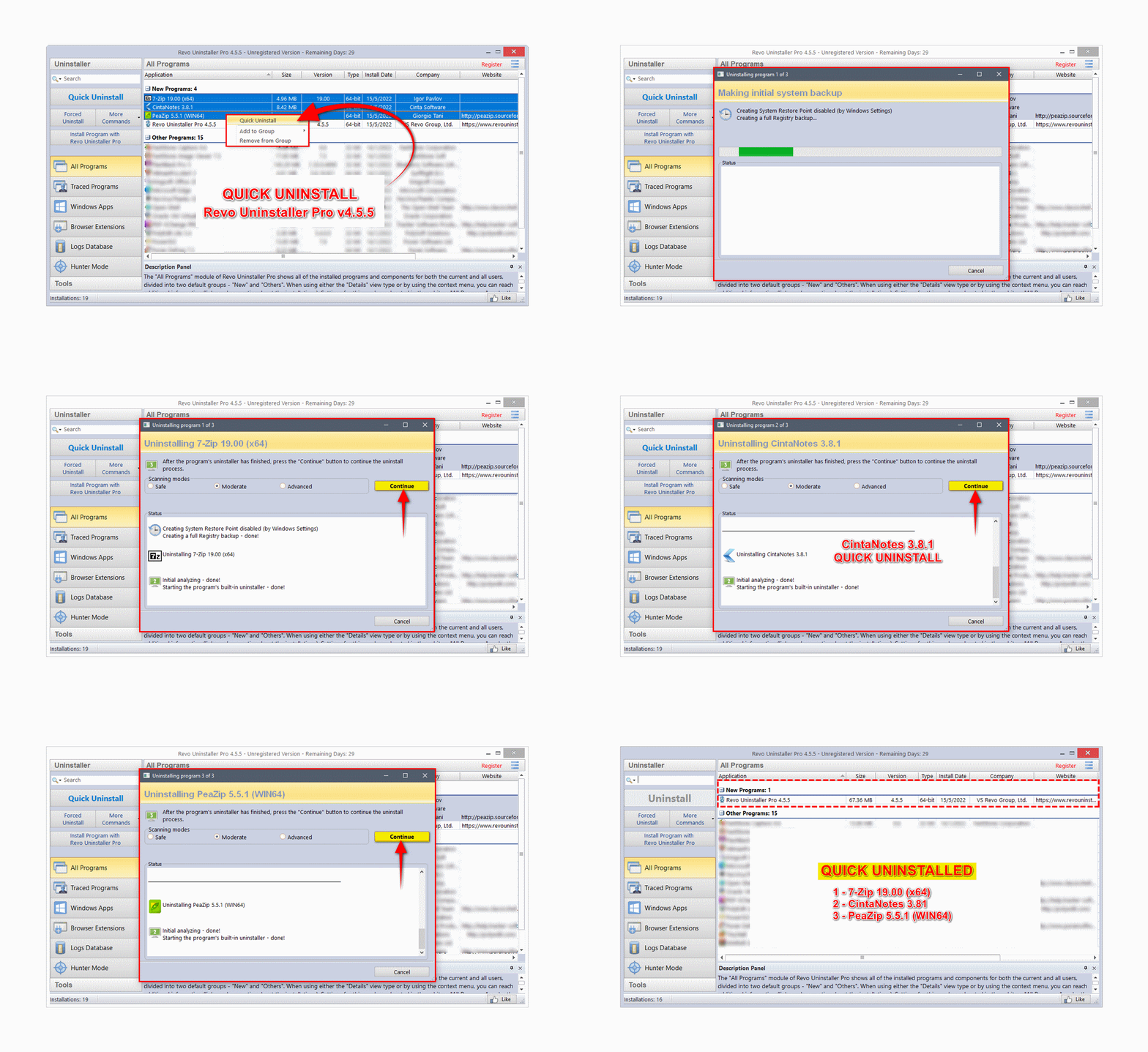
Quick Uninstall: select several items and run one flow (moderate scan shown in many setups).
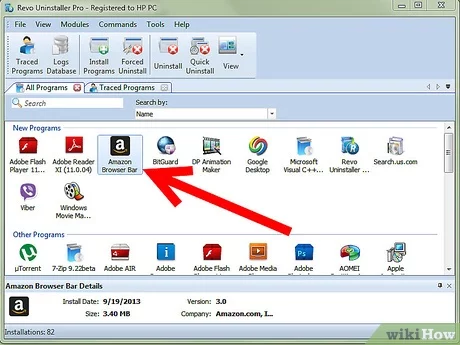
After uninstall: review leftovers
Uncheck anything shared (runtimes, saves). Delete only what clearly belongs to the removed app.
Hover or widen columns to read full paths. If a file sits under ProgramData or another user profile, confirm no other software still uses it.
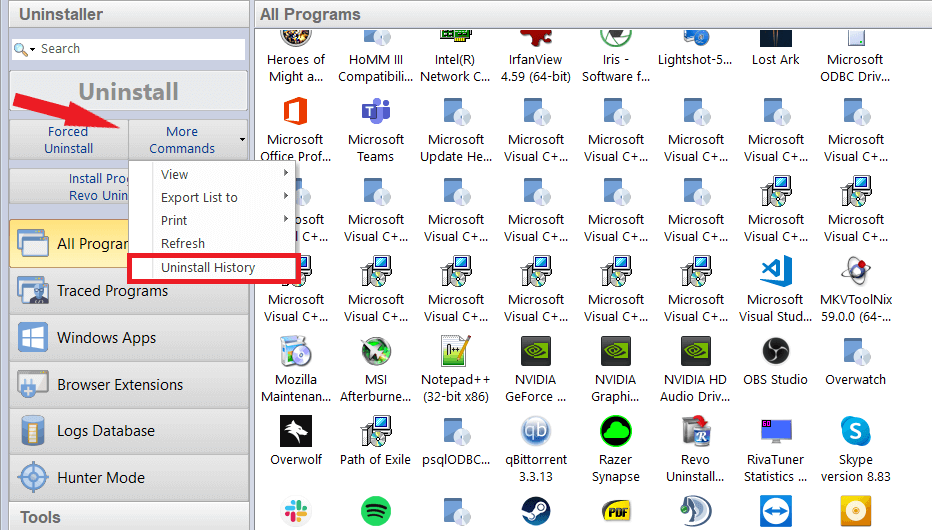
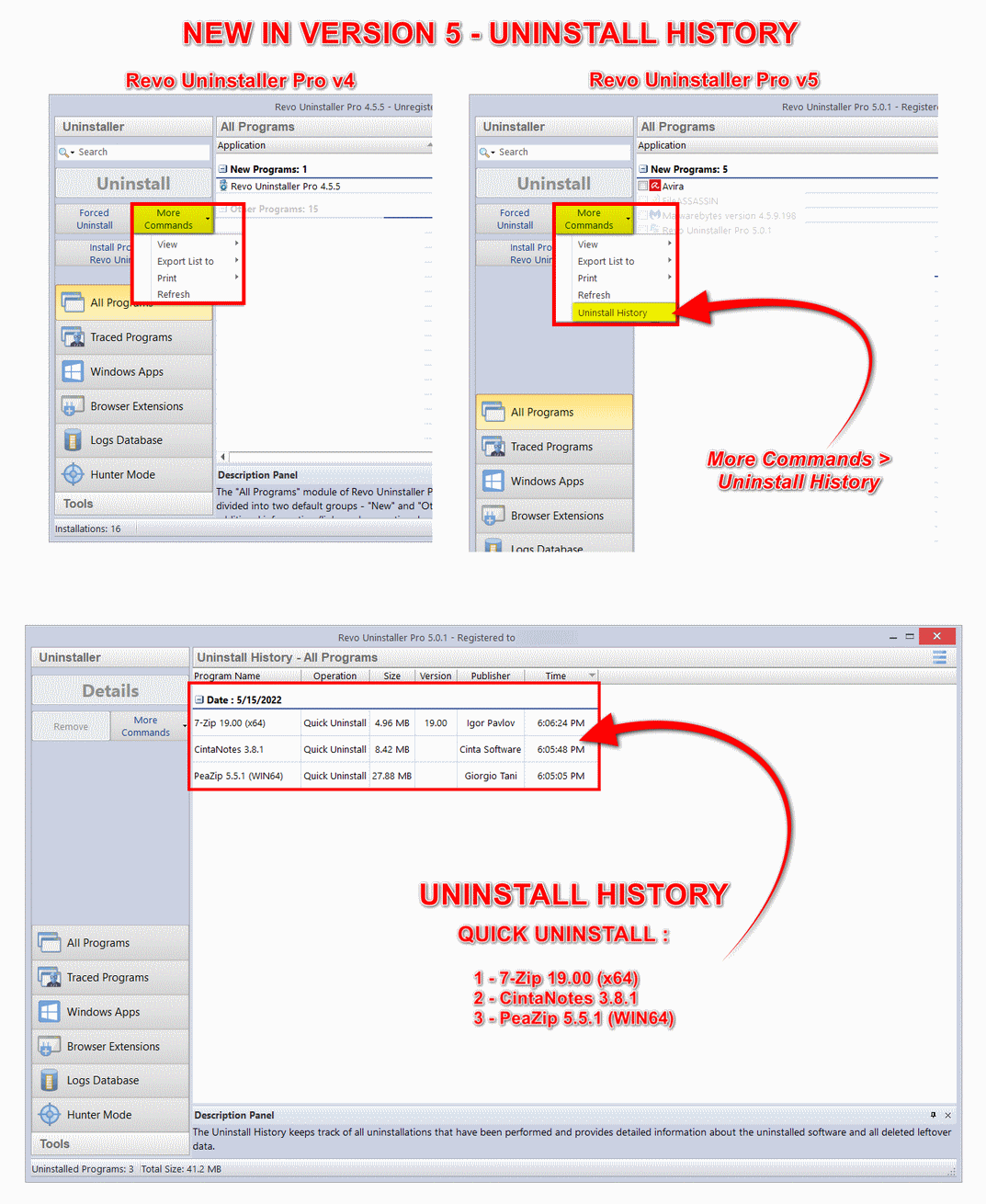
Uninstall history
Open from More Commands to see what was removed and when, useful if something breaks after a cleanup.
Cross-check timestamps with Windows Update or driver installs so you do not blame the wrong uninstall session.
How to read a leftover list
The scanner surfaces candidates, not guarantees. Treat every line as a question: “Would removing this break something I still run?”
Green flags to investigate
- Paths under the old program folder with today’s date after you uninstalled.
- Registry keys that repeat the vendor name but no longer have matching files on disk.
- Shortcuts on the desktop or Start menu that point to deleted executables.
Red flags to leave alone
- Entries for Microsoft Visual C++, .NET, or audio runtimes unless you know nothing else needs them.
- Anything inside another active game or creative suite directory.
- Keys that mention
Windows,Shell, or Explorer handlers when you are not debugging shell issues.
Still unsure? Stop, export a backup from the app, and continue on the registry article before you delete.
What readers often report
Typical situations, not guarantees.
“Antivirus left a driver behind; Forced Uninstall and a careful leftover pass fixed the ghost adapter.”
“A launcher kept coming back; Hunter Mode plus disabling the startup entry stopped it.”
“Junk scan after big creative suite updates: fewer temp folders sitting on the disk.”
“We standardize on restore points before interns run cleanup Fridays. History view makes rollbacks less scary.”
Quick fixes
Access denied
Quit the app and its services. Check Task Manager. Only then retry as administrator.
Shared runtimes in the list
Keep Visual C++ and .NET packages unless you are sure nothing else needs them.
Microsoft Store apps
Use Settings → Apps for some UWP apps; use Revo for classic Win32 installers.
Portable folders
If the app never used an installer, delete the folder manually after you back up settings. Use Hunter Mode to catch stray shortcuts.
Antivirus quarantine
Restore false positives before you uninstall, or the uninstaller may miss half-installed files and confuse the leftover scan.
Slow scans
Large disks and network drives slow every scanner. Run deep passes when you have time, not during deadlines.
VPN or filter drivers
Uninstall the vendor app first, reboot, then review adapters in Settings. Remove leftover services only when no active connection depends on them.
OneDrive and cloud paths
Files on demand look local but may hydrate from the cloud. Pause sync or mark folders available offline before you treat them as normal leftovers.
Multiple Windows accounts
Programs installed for one user may still leave data under another profile. Switch accounts or browse those folders before you assume a path is unused.
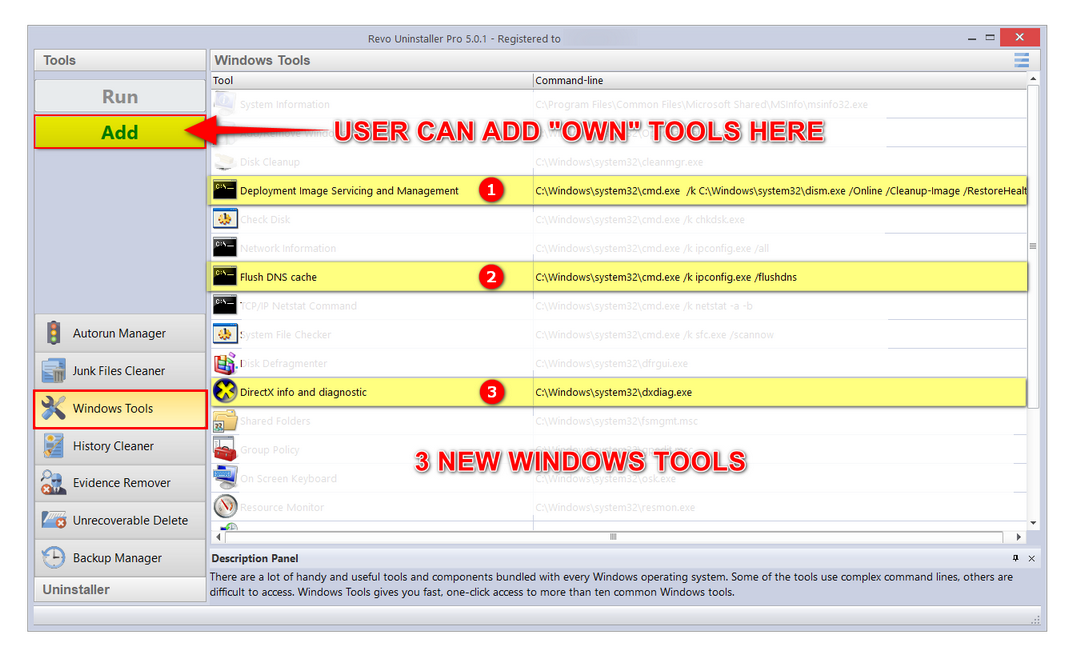
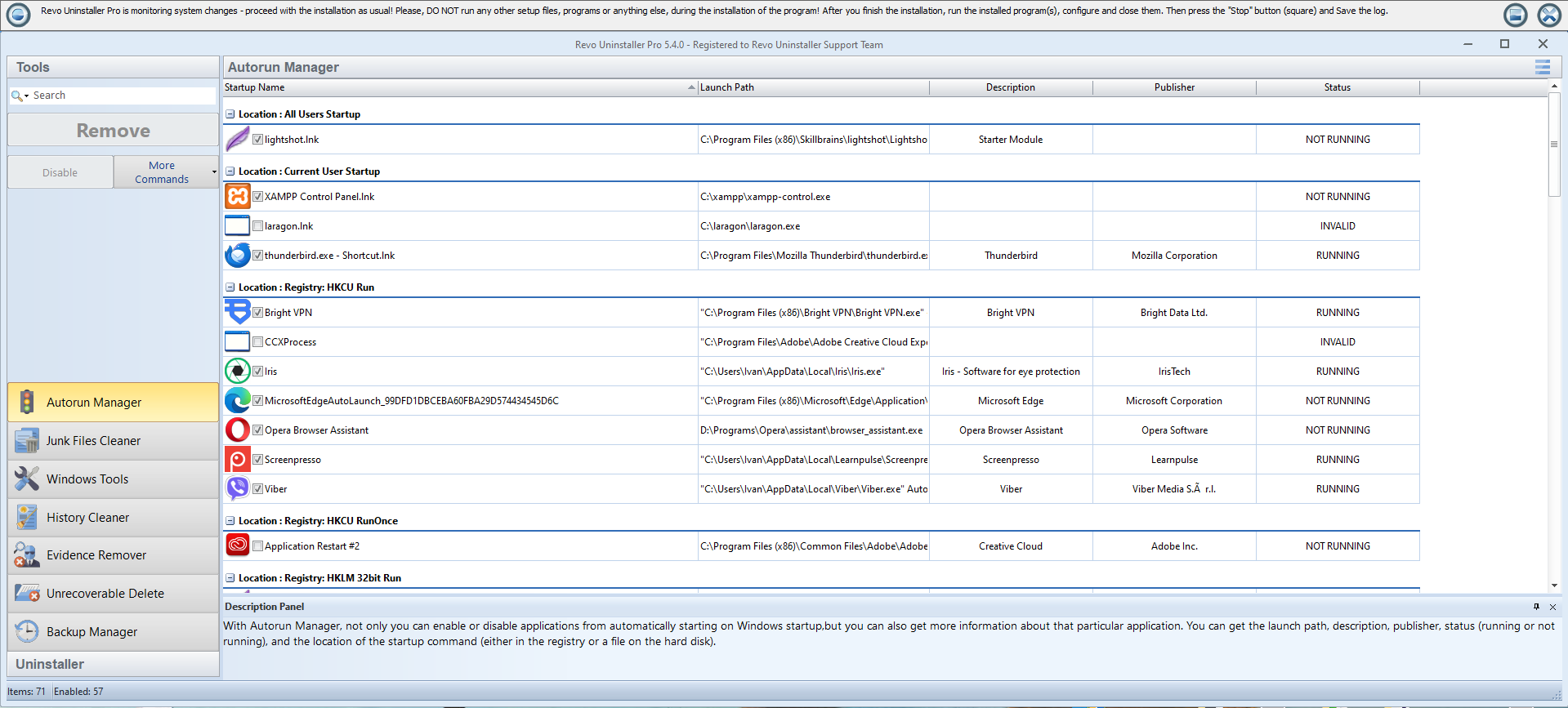
Left: Windows Tools hub. Right: Autorun Manager (startup programs and status).
Glossary
Short definitions for words you will see in dialogs and on this site.
- Leftover
- A file, folder, or registry key that remains after the vendor uninstaller ran.
- Moderate scan
- A middle ground between quick and aggressive leftover detection. Good default when you are still learning the PC.
- Trace
- Evidence an app existed: shortcuts, firewall rules, autostart entries, or recent-document lists.
- Restore point
- A Windows snapshot you can roll back to if a cleanup session goes wrong.