
Windows updates are necessary; clutter is optional. This checklist is meant to run in about ten minutes of focused work, plus one reboot. The goal is not perfection—it is to remove obvious duplicates, quiet noisy temp folders, and confirm core devices still behave before you move on with your day.
Before you touch anything
Create a restore point (or confirm a recent automatic one exists) while the system feels healthy. If an update just finished, give the machine five idle minutes so background indexing and servicing settle; that keeps program lists and uninstallers from racing each other.
In Revo Uninstaller, sort All programs by install date. Updates often pull in trial utilities, OEM helpers, or old versions of runtimes you no longer need. Remove duplicates you recognize—two PDF toolbars, two “optimizer” suites from different years—before you chase single stray files.
The ten-minute pass
- Quick wins: uninstall obvious duplicates and trials you will not use.
- Junk scan: target temp folders, browser caches, and installer leftovers; review the list instead of ticking every box blindly.
- Recycle Bin: empty it only after you skim what landed there during the session.
- Reboot: let Windows finish pending file operations.
- Smoke test: play a short sound clip, open a browser, and confirm Wi-Fi or Ethernet connects without opening the VPN you might have removed earlier.
Revo-specific habits that help
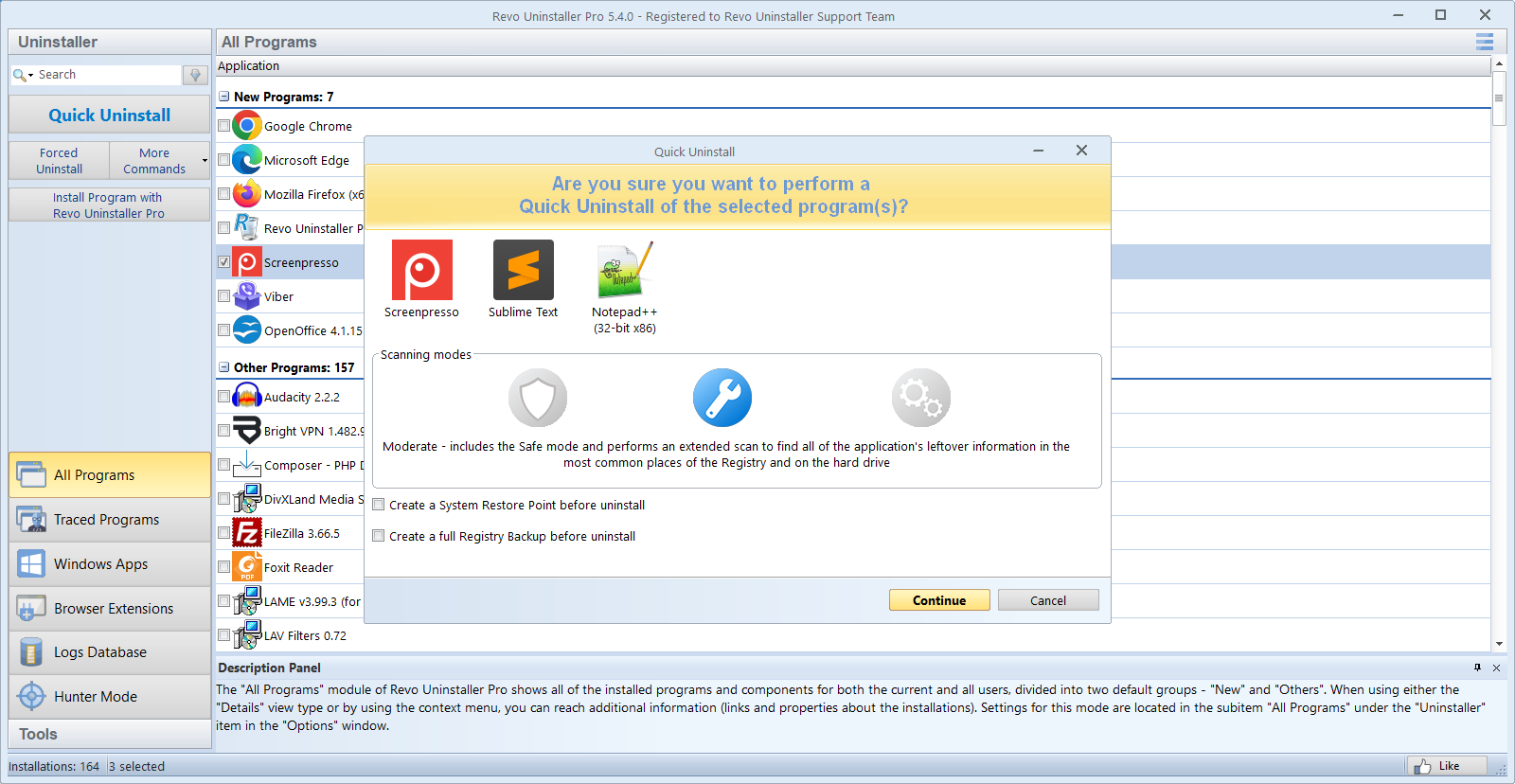
After each uninstall, read the leftover list carefully. Prefer removing folders clearly named after the vendor over guessing at shared Microsoft runtimes. If you use Quick Uninstall for several apps in a row, pause before registry-heavy suites (security software, VPNs, audio drivers) so you can reboot between waves.
Schedule heavy cleanup for a quiet evening. Background sync clients, games with large patches, and corporate VPN software can rewrite files while you scan, which makes leftover lists noisier than they need to be.
If something breaks
Restore the restore point before you hunt individual keys or system folders. Stability first—then rerun the checklist with smaller batches so you can see which removal correlated with the symptom.
Printers, OEM tools, and “helpful” bundles
Feature updates sometimes reinstall printer OEM utilities or scanner suites. If you do not use the vendor’s cloud ink portal, remove it explicitly in Revo after checking that Windows still lists your printer under Settings → Bluetooth & devices → Printers.
BIO or motherboard companion apps (RGB, fan curves, audio enhancers) often ship multiple services. Remove them as one family: uninstall the main control panel first, reboot, then clean leftovers so you do not strand a half-removed driver.
Optional: snapshot and shadow storage
If disk space is tight right after an update, check whether System Protection is holding large restore points or whether File History / backup tools captured a full drive image. Trimming old snapshots is legitimate housekeeping; just keep at least one recent restore point before aggressive deletion.