
Finish the vendor uninstaller, reboot once, and open Windows Settings → Network & internet before you delete deep leftovers. If the adapter list is empty or stuck on “Identifying…,” run the built-in network troubleshooter while the VPN services are fully stopped.
Only after connectivity returns should you prune leftover firewall rules or filter drivers. Removing drivers while the stack is half-rolled-back makes support calls longer, not shorter.
Document the adapter names you expect (Wi-Fi, Ethernet, virtual TAP) so you can compare before and after screenshots. The Guides quick fixes include a VPN-focused note that pairs well with this workflow.
If problems persist, consider a system restore point created before the uninstall rather than aggressive manual driver deletion.
Quick stack checks (after the first reboot)
Open an elevated Command Prompt or PowerShell only if you are comfortable doing so. ipconfig /flushdns clears stale resolver caches after a suite rewired DNS. If the VPN pushed custom DNS servers, confirm Settings → Network → your adapter → DNS server assignment is back to automatic unless you intentionally use a third-party resolver.
Windows’ Network reset option is the sledgehammer—use it after lighter steps fail, because it removes saved Wi-Fi profiles and VPN client metadata you might still need.
Order of operations with Revo
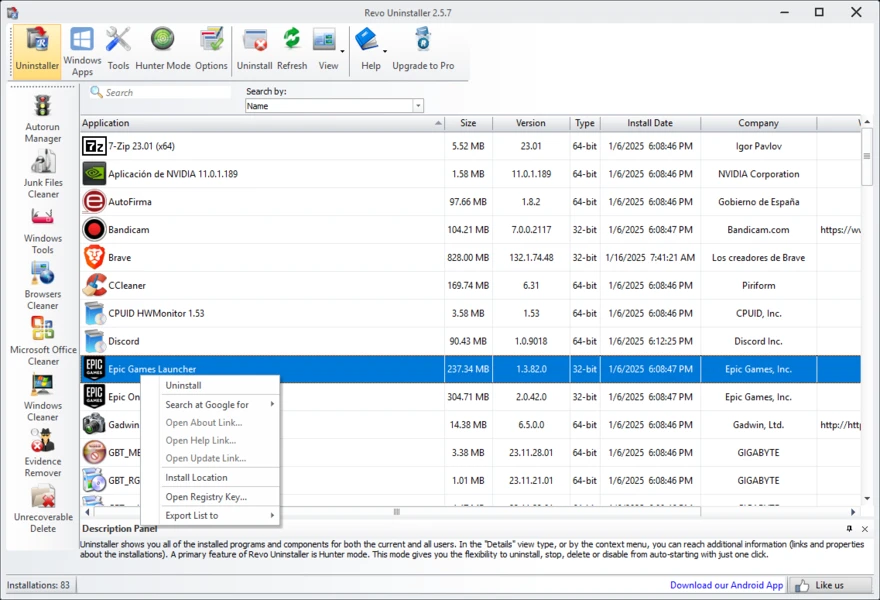
Use Revo’s uninstall flow for the VPN or security suite first so services stop cleanly. After the network is stable, revisit leftover file lists for orphaned .sys or .dll entries only when you can tie each item to the removed product.
Corporate machines may repush VPN profiles from MDM. If adapters reappear after policy sync, coordinate with IT before deleting “duplicate” virtual adapters—they might be intentional split tunnels.
When to stop and restore
If you lose both Wi-Fi and Ethernet, avoid iterative driver hunting online from another device: restore from a known-good restore point, then uninstall again with smaller steps (vendor uninstall only, reboot, verify, then optional Revo leftover pass).
Fallback connectivity while you fix Wi-Fi
USB tethering from a phone, a known-good Ethernet cable to the router, or a second Wi-Fi USB dongle buys calm debugging time. Download fresh vendor drivers only from the laptop maker or chip vendor site once you can reach the internet reliably.
Device Manager and driver roll-back
If Wi-Fi worked moments before the uninstall and fails immediately after, open Device Manager → Network adapters, select your wireless card, and check Properties → Driver → Roll Back Driver when the button is available. That is gentler than uninstalling the device entirely.
Also glance at Proxy settings under Settings → Network & internet. Some VPNs force a manual proxy; clearing it after uninstall fixes “connected but no web” symptoms without touching drivers.