Is there a free edition?
Yes, for non-commercial use, with a different feature set than Pro. Compare inside the program you install.
FAQ: free vs ProRevo Uninstaller
Revo Uninstaller lists installed software, scans for leftover files and registry entries, and includes tools like Hunter Mode and Forced Uninstall. You can remove one program at a time or queue several, then open uninstall history if something acts odd days later. This site offers plain-language guides and FAQs on separate pages.
Prefer words first? Open the Guides, FAQ, or Blog from the navigation bar anytime.
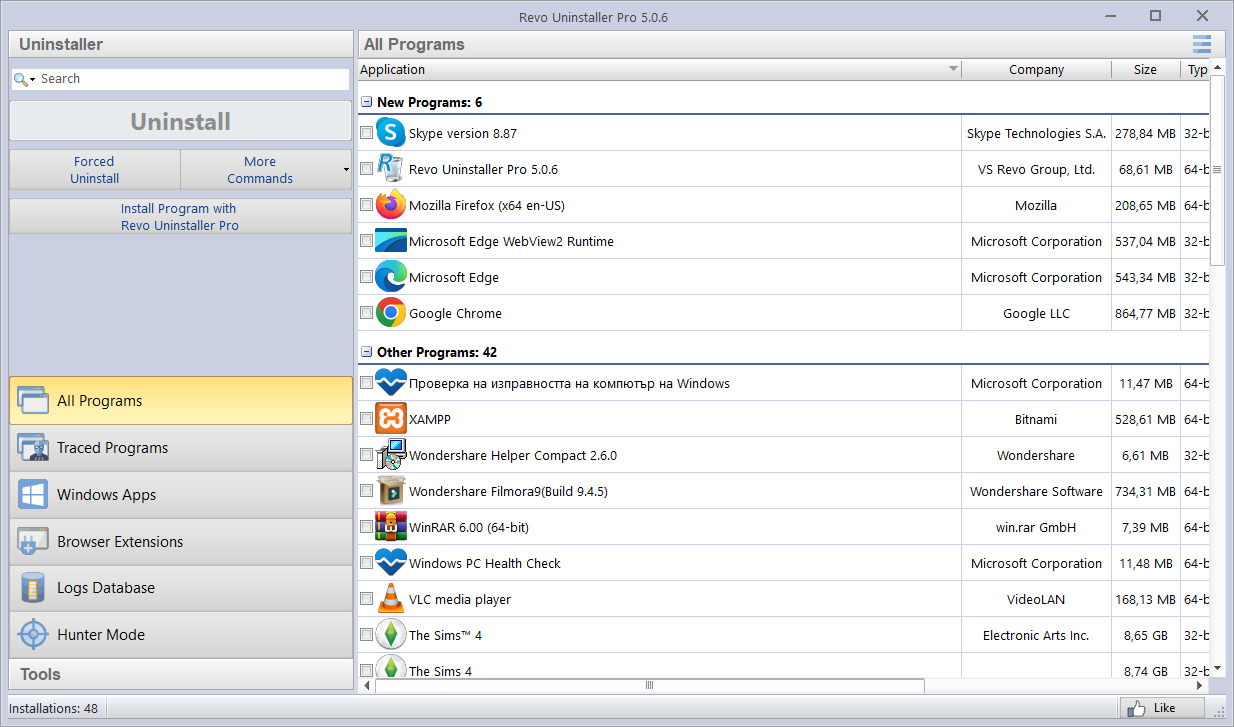
Main window: installed programs and uninstall actions
New here? See Settings vs Revo, common situations, first launch, the blog, FAQ, a typical workflow, and download.
You do not have to pick one tool. They cover different layers of the same problem.
More detail in the FAQ under whether Revo replaces Settings.
Command-line and Store flows are valid first steps. Revo still helps when those paths leave services, shell handlers, or folders behind.
Great for scripted upgrades and silent removes. If a package leaves custom drivers or startup tasks, switch to a graphical leftover review.
Use Settings or the Store library for UWP removals. Classic desktop programs beside them may still need the All Programs list in Revo.
Apps that never registered an installer may not appear in any list. Delete the folder manually after backup, then scan for stray shortcuts. See FAQ: portable folders.
Toolbars and add-ons often survive a “normal” browser reset. Revo can list extensions across supported browsers so you remove the right IDs, not only shortcuts on the desktop.
Treat each entry like a mini program: note the publisher, then uninstall or disable from the browser if it still loads pages in the background.
Removing a browser does not always flip PDF, mail, or HTTP handlers back to something safe. Confirm defaults under Windows Settings after a big cleanup.
Screenshots of the extensions panel are on Features.
Quick reality checks before you change how you uninstall.
Myth: Revo removes every program in one silent click.
Fact: You still run the vendor uninstaller when it exists, then you choose what to delete from leftover lists.
Myth: If the scan lists it, it must be junk.
Fact: Caches, shared runtimes, and cloud folders often look suspicious. Read the full path and skip what other apps still use.
Myth: A deeper uninstall always speeds up the PC.
Fact: Removing clutter helps, but RAM, storage health, and background apps matter too. Expect fewer leftovers, not a magic benchmark jump.
The Windows app bundles uninstalls, cleanup scans, startup tools, and—on many Pro editions—registry backup and cleaner panels. Screenshots and captions live on the Features page.
Program list
Sort, search, and uninstall desktop software. Queue several items for Quick Uninstall when you are clearing clutter.
See screenshotsHunter & Forced
Target tray icons and broken entries when the normal list lies or the vendor wizard fails mid-way.
Read the GuidesCleanup scans
Review temp files, caches, and shortcuts before you delete. Treat suggestions as a checklist, not an auto-wipe.
See screenshotsStartup & tools
Autorun Manager plus shortcuts to System Restore, Services, and other built-in utilities.
Registry backup and companion panels: see the tour.
See screenshotsBackups, automation, tuning, and monitoring sit beside the uninstaller in many Pro builds. Each card matches a real panel—open the Features tour for full-size captures and captions.
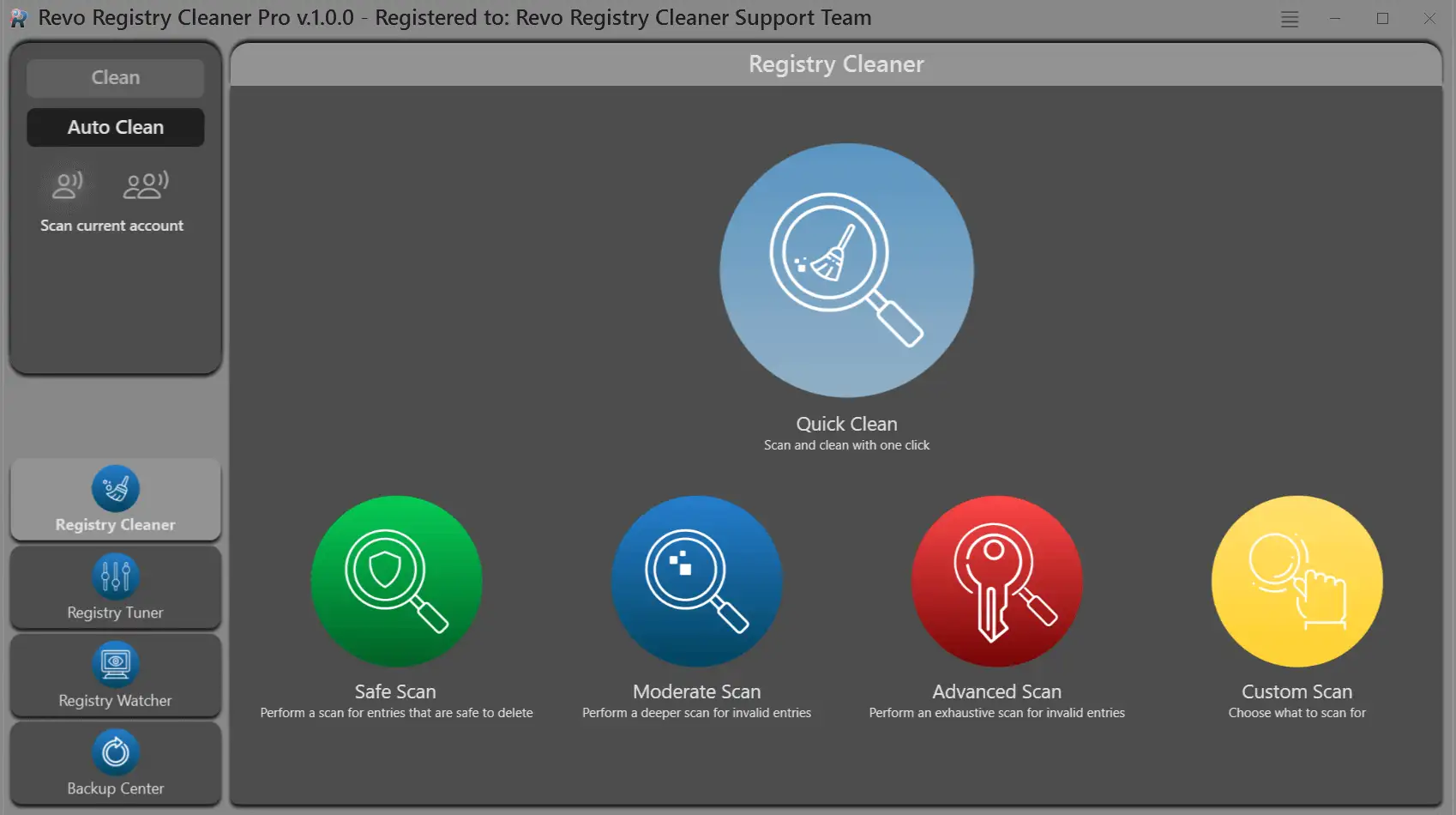
Scan summaries and primary actions stay readable during long sessions.
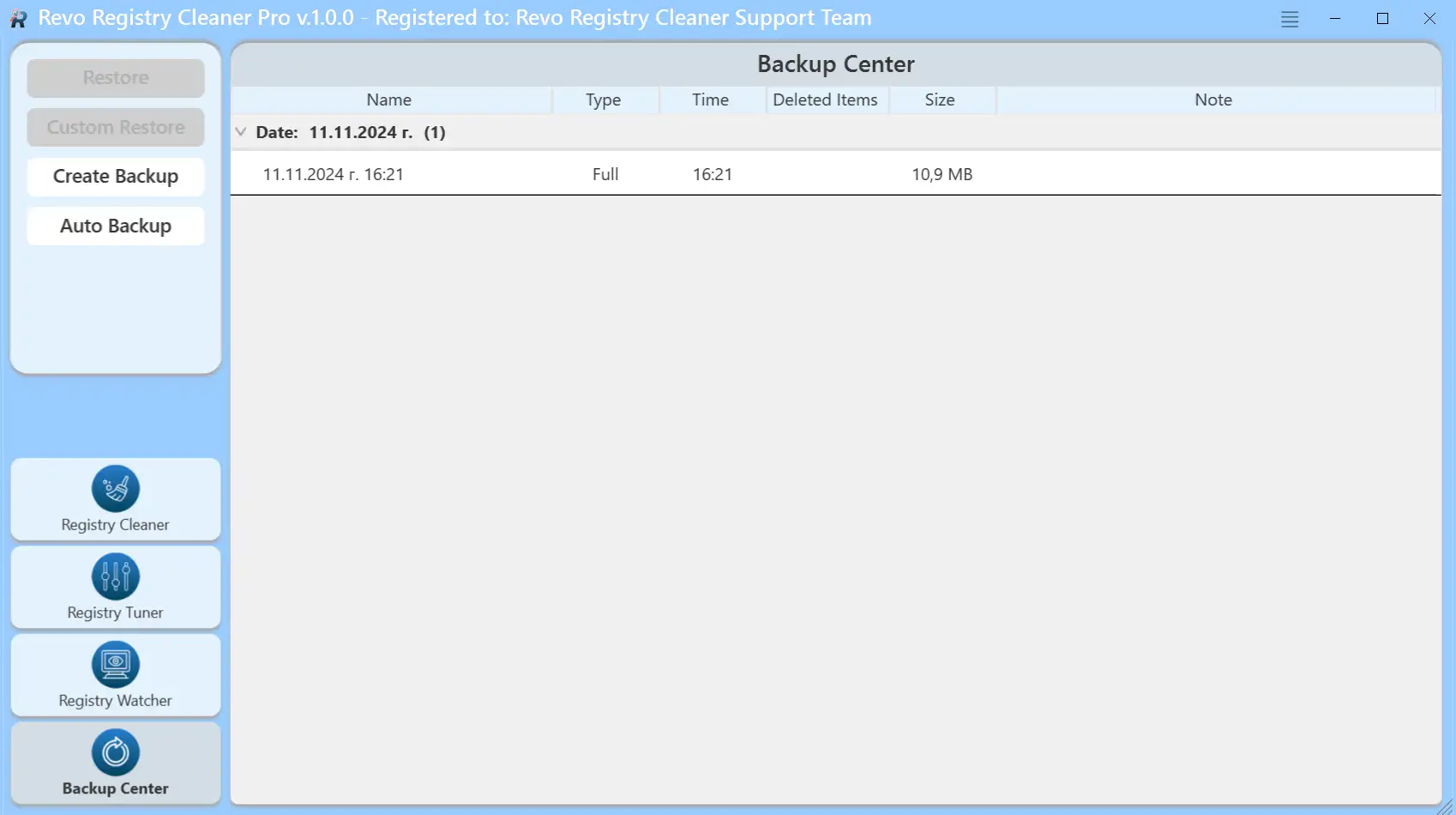
Snapshot the registry before aggressive cleanup, then store copies off the system drive.
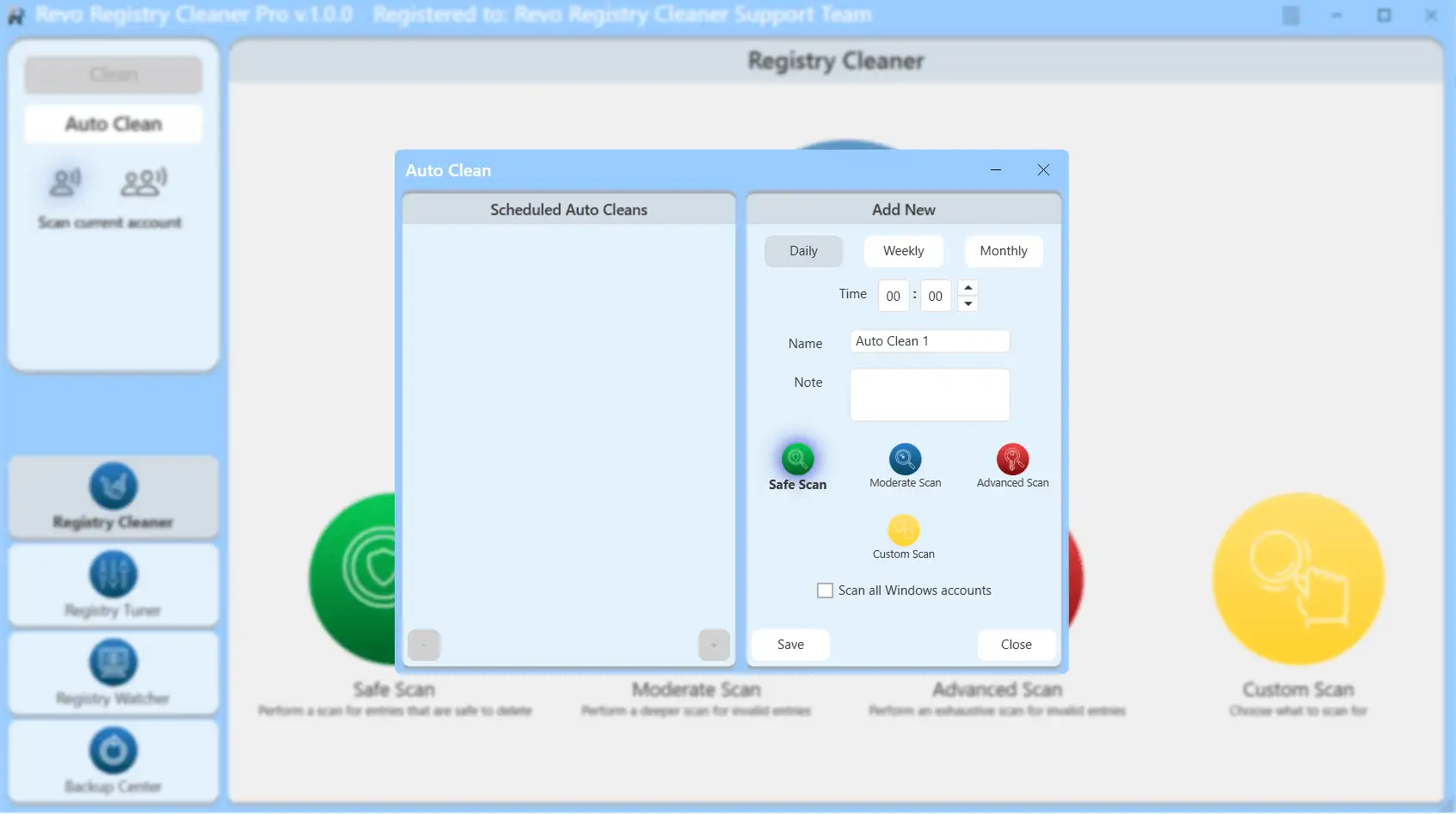
Schedule scans for quiet hours so background jobs do not fight live uninstalls.
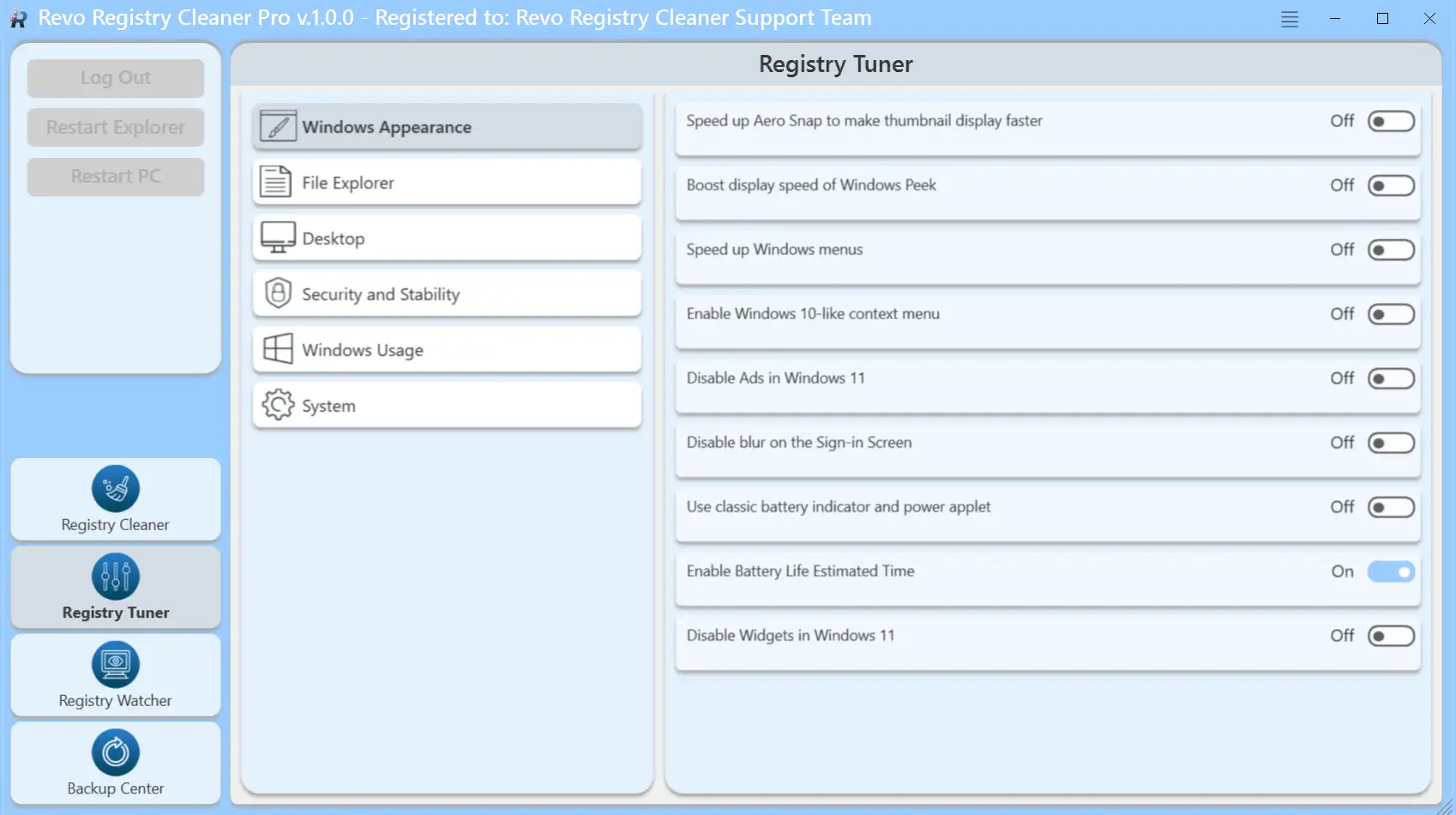
Review grouped tweaks carefully; note defaults before you change production PCs.
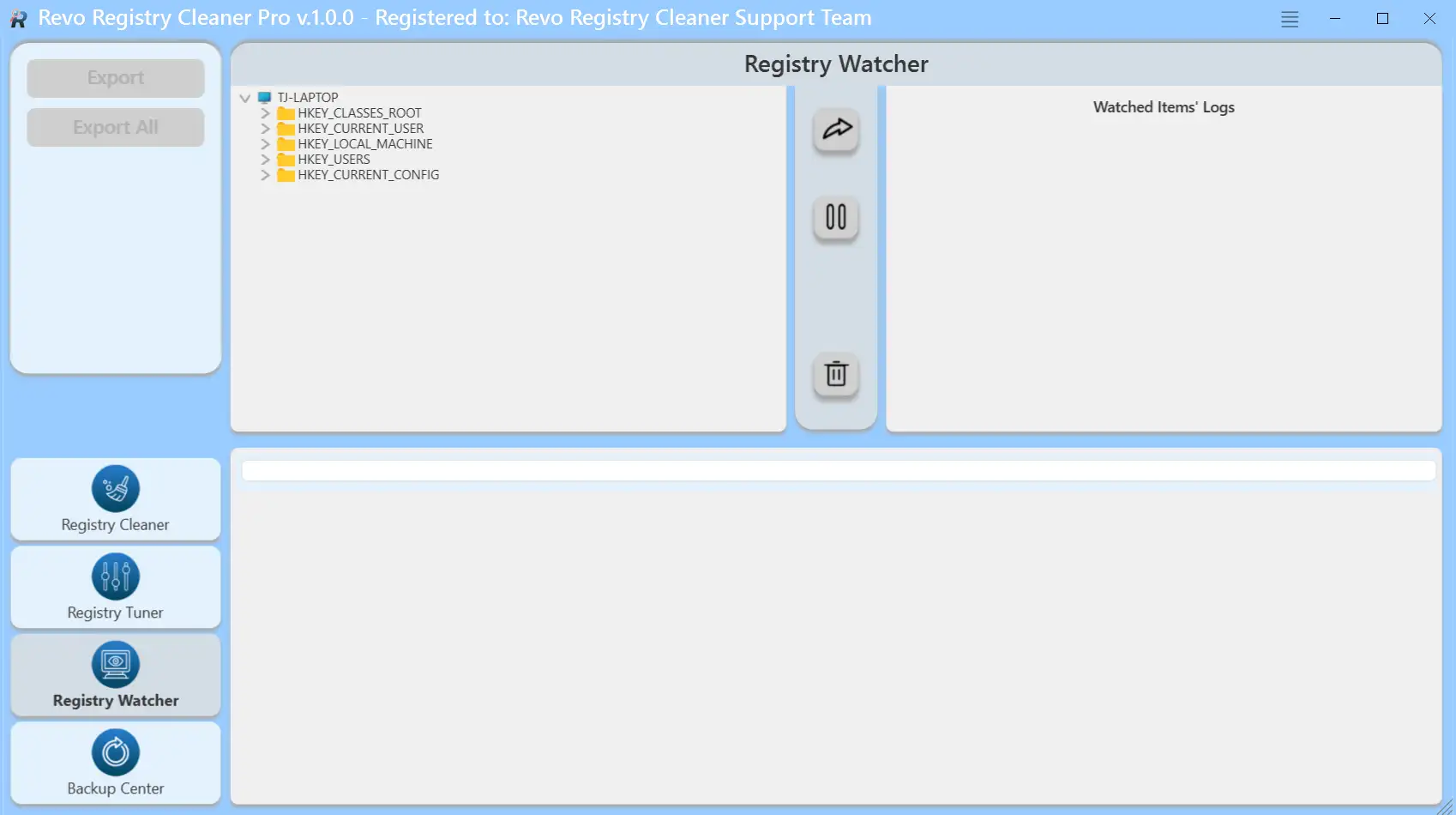
See which installer wrote which keys, then cross-check paths before deletion.
Open the full Registry Cleaner walkthrough on Features for larger screenshots and step-by-step context in Guides.
The main grid is dense on small laptops. A few list habits make uninstalls faster and safer.
Sort by install date when you are hunting a bundle that arrived last weekend, or by name when you only remember part of the publisher. Combine with the search box instead of scrolling hundreds of rows.
Drag column borders or maximize the window before you compare two similar entries. Truncated names hide different editions of the “same” app.
You may see separate rows for 32-bit and 64-bit shells of one suite. Remove the wrong one and shortcuts can break; read the install location column when it is visible.
See the list layout in context on Features.
Same end goal, different entry points. Match the method to whether the program still has a working vendor wizard.
Runs the program’s own uninstaller from the list. Always try this first when the entry is healthy.
Queues several apps so you are not clicking through the same dialogs all afternoon. Still runs each vendor uninstaller in order.
Points at a folder or broken entry when Add/Remove is wrong or the wizard crashes. Expect a stricter leftover pass afterward.
Drags a target onto a live window or tray icon when the program never registered like a normal install.
GIFs and ordering notes live in Guides; panel locations are on Features.
Compilers, package managers, and SDKs scatter caches across your profile. Uninstall the main product first, then treat scan results as a checklist, not a bulk-delete button.
Run each vendor’s uninstaller or repair tool. Skipping it and deleting Program Files folders by hand often leaves services and debugger registrations behind.
npm, pip, NuGet, and similar stores can grow huge under AppData. Clear them only after you no longer need that toolchain, or you will re-download everything on the next project.
Linux distributions on WSL have their own lifecycle. Use the documented unregister or distro tools before you delete folders Windows Explorer shows under \\wsl$.
Some programs look like one entry in the list but depend on redistributables many other apps use too.
Runtime packages often appear near leftovers. If other software still launches, keep the redistributable unless every dependent program is gone.
Steam, Epic, and similar tools share libraries across titles. Uninstall one game first; remove the launcher only when no installed game needs it.
Productivity bundles register shell handlers and previewers. Expect a longer leftover list and more reboot prompts than a small utility.
The app is built for Windows desktops and laptops. These reader profiles get the most from the guides here.
You want trial software gone, game launchers tidied, and fewer pop-ups after a cleanup weekend. Start with the workflow above, then open the Blog checklists.
You already know Control Panel and Settings but want one hub for uninstalls, startup review, and leftover scans. Features shows every panel; Guides explains order and risk.
You fix laptops for relatives. Point them at the FAQ for licensing questions and the Expectations section so nobody assumes magic fixes.
Software can install for the current user only or for every profile. Leftover scans may show paths under another account’s folders.
C:\Users\OtherName\ without checking that profile first.Recognizing these folders helps you decide what is safe to remove. Names vary slightly by Windows language and edition.
Per-user settings under %LOCALAPPDATA% and %APPDATA%. Many apps store caches here. Deleting the wrong vendor folder can reset logins or break plugins.
Machine-wide data for all users. Antivirus, licensing, and installers drop files here. When in doubt, leave it until you confirm no other program shares that component.
%TEMP% and vendor unpack folders fill with leftovers after failed setups. Safe to clear only when no installer is running and you have verified the path is not an active project folder.
For a longer read on green and red flags in lists, see Reading leftover lists in Guides.
OneDrive, Dropbox, Google Drive, and similar clients mirror files into normal-looking paths under your profile. A scan may flag them because they are large or full of cache files.
Scans can list folders on volumes that are not plugged in right now, or on shares that only exist when you are on the office VPN.
If a path starts with a letter that is empty today, reconnect the drive or open Disk Management before you assume the folder is orphan junk.
Entries under \\server\share\ affect data other PCs might still use. Delete only after you confirm the share owner and backups.
Bulk-selecting “everything” while a volume is offline is how shared project folders disappear. Sort or filter by path prefix first.
Feature updates reshuffle drivers, inbox apps, and storage layout. Uninstalling aggressively in the middle of a pending reboot is a common source of “half removed” programs.
Let Settings → Windows Update finish and restart before you judge which programs “broke overnight.”
Use the built-in storage tools for previous Windows installations and delivery optimization caches before you delete large folders by hand.
Once the OS is stable, uninstall trials and duplicates with the usual workflow so leftover scans match reality.
Laptop vendors and printer makers ship updaters, audio panels, and driver helpers that outlive the app you thought you removed.
System32\DriverStore paths suggested by scans.If only the driver remains, use the manufacturer’s removal guide or Windows Settings → Printers first. Aggressive deletes can break queues for every user on the machine.
Pick a path that matches why you opened this site today.
Uninstall personal software, run a careful junk pass, then reset Windows from Settings for a clean handoff. Use our workflow so you do not delete shared runtimes other apps still need.
Prep checklist in GuidesSort by install date, remove trial bundles, then review startup entries. The Blog checklist helps after a big Windows update.
Post-update checklistFinish with your security suite first. When the threat is gone, Revo can help remove leftover folders from the old installer. It is not a malware scanner.
FAQ: virusesYou do not need every step every time. Use what matches the program you are removing.
Locate the app
Scroll All Programs, search, or switch to Hunter Mode when the window never appears in the list.
Run the regular uninstall
Let the vendor uninstaller finish first. It removes services and registered components in the expected order.
Review the leftover scan
Read file paths and keys. Uncheck shared runtimes, cloud sync folders, or anything you do not recognize.
Reboot and verify
Restart if the uninstaller asked for it. Open the apps you still need and confirm startup items look normal.
Want more detail? Read the Guides, check the FAQ, or browse the Blog for focused topics.
Many uninstallers pause while a Windows service stops. If you force-kill the window, the service may restart on boot and block the next attempt.
Shortcuts to Services, System Restore, and similar applets appear in the same hub as junk cleanup. The Features page labels each screenshot.
Features: Windows toolsStartup entries are only half the story. Vendors also register triggers that run once a day, at logon, or when you idle.
taskschd.msc) and search for the product name after the main uninstall finishes.If a task references a path under Program Files you already deleted, export the task XML once before you remove it, in case a corporate policy needs the original schedule documented.
Try these in order before you force-remove folders by hand.
Wait and read the dialog. Some uninstallers sit on “please wait” while a service stops. Note the exact error text if one appears.
Close the app and related tasks. End the program in Task Manager, pause sync clients, and retry the vendor uninstall from the list.
Reboot cold. A pending restart or a locked DLL often clears after a full restart, not only a sign-out.
Then use Revo’s deeper paths. Forced Uninstall or Hunter Mode belongs after the normal wizard fails, not as step one. See Guides for order and risk.
The uninstall wizard is not always the last word. Budget five extra minutes so the PC does not surprise you at the next reboot.
Open Autorun Manager and look for orphaned entries that still point at the old folder. Remove only what you recognize.
Blog: startup after uninstallIf something misbehaves days later, uninstall history and logs show what was removed and when. Screenshots of these panels are on Features.
Features: screenshotsProgram folders shrink first; caches and old updates may still hold gigabytes. A careful junk pass comes after you trust the leftover list.
Blog: disk space bingeJump straight to the topic you care about. You can return to this home page anytime from the logo.
You will not remember every checkbox you cleared three Tuesdays ago. A tiny habit now prevents mystery errors later.
History and log panels are part of the same toolkit as junk scans. The Features page shows where they usually sit in the window layout.
Features: panels and screenshotsAfter the installer finishes, spend a few minutes on setup habits. They save hours when something goes wrong later.
Screenshots of each panel are on Features; deeper order-of-operations notes are in Guides.
Short summaries only. Expand the matching items on the FAQ page for full context.
Yes, for non-commercial use, with a different feature set than Pro. Compare inside the program you install.
FAQ: free vs ProThey can if you select everything blindly. Read paths, keep backups, and skip shared runtimes.
FAQ: safetySystem-wide installs and removals usually need elevation. “Access denied” often clears after Run as administrator.
FAQ: administrator rightsFollow IT policy. The free build is not for commercial use; businesses typically standardize on Pro.
FAQ: use at workUse the in-app update check when available, or reinstall from a trusted source after closing the program.
FAQ: update RevoKeys are smaller than folders but the damage from a wrong delete can be wider. Treat them with more caution than temp files.
The blog walks through green and red flags with a calmer pace than a live uninstall session.
Registry leftovers: what is safe to touchA quick reality check before you install or clean anything.
Vendor uninstallers and leftover scans can run longer than a coffee break. A machine that sleeps mid-way may leave the database half-written.
This pairs with When to pause a cleanup when you are on battery only.
Aggressive scans are fine on a calm evening. Stop or postpone when any of these are true:
The prep checklist on the Guides page lines up a safer time window.
Real-time antivirus and EDR tools sometimes block uninstallers, cleanup modules, or the Revo executable itself. That is not always malware; it can be aggressive heuristics on freshly downloaded files.
Malware is a different workflow
Use a full antivirus scan first. Revo targets legitimate program leftovers after the threat is gone, not active infections. See FAQ: viruses and FAQ: antivirus blocks the uninstall.
The same uninstall rules apply, but the failure modes differ when the session is not a physical console.
FAQ: Windows Server and Guides: prep checklist cover stricter environments.
Questions first?
Open the FAQ for licensing, free versus Pro, backups, and antivirus tips. Expand the items you need before you install.
Before you uninstall half the drive, confirm the basics so support questions are easier later.
Windows installer for Revo Uninstaller Pro. After download, check the digital signature in Properties.
Scan and verify before running.